

How to create a GPU Container job from the web UI
Create a GPU Container job on CosmicAC using the web interface.
Prefer the command line? See Create a GPU Container Job for CLI instructions.
Prerequisites
- A CosmicAC account
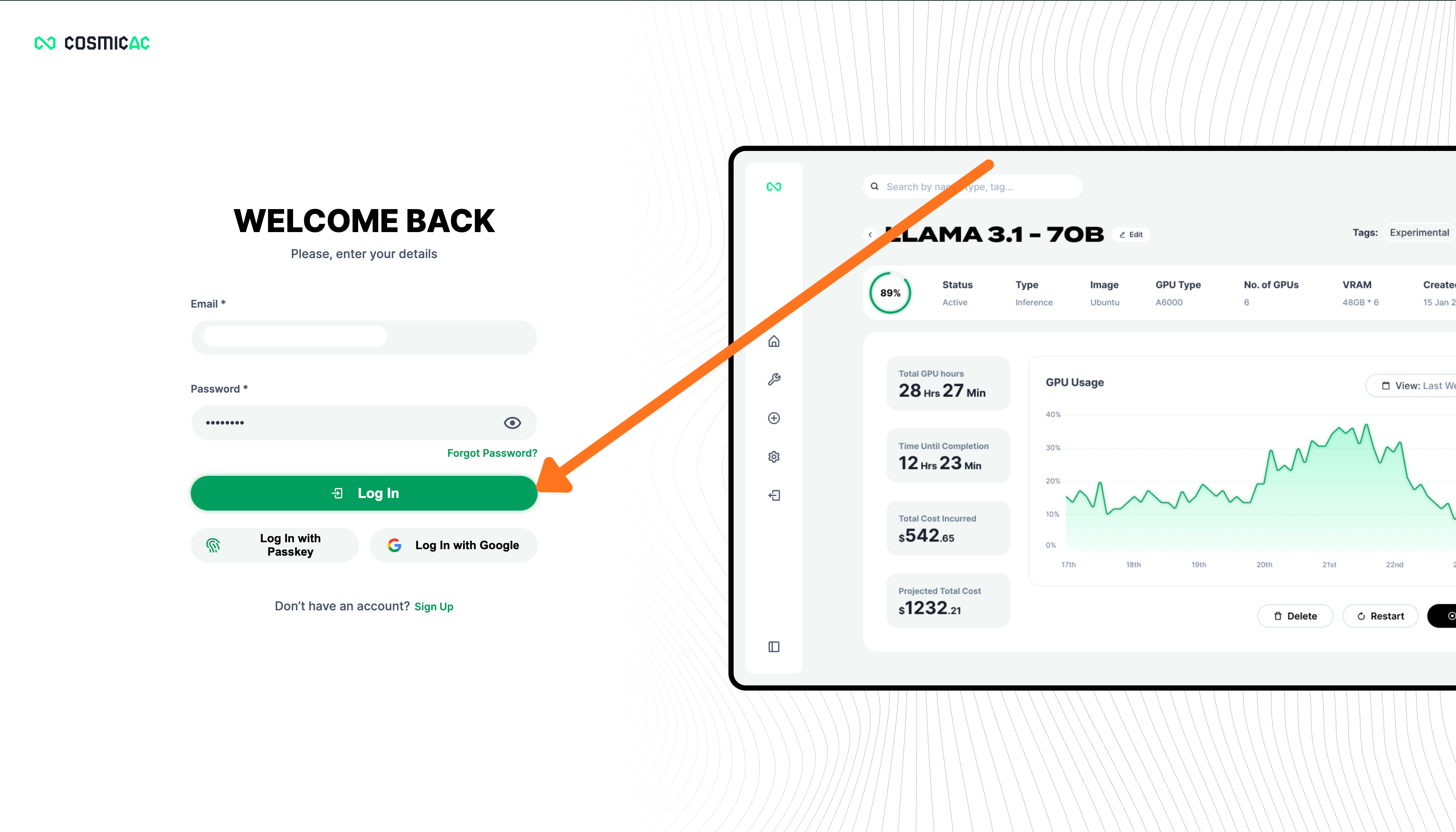
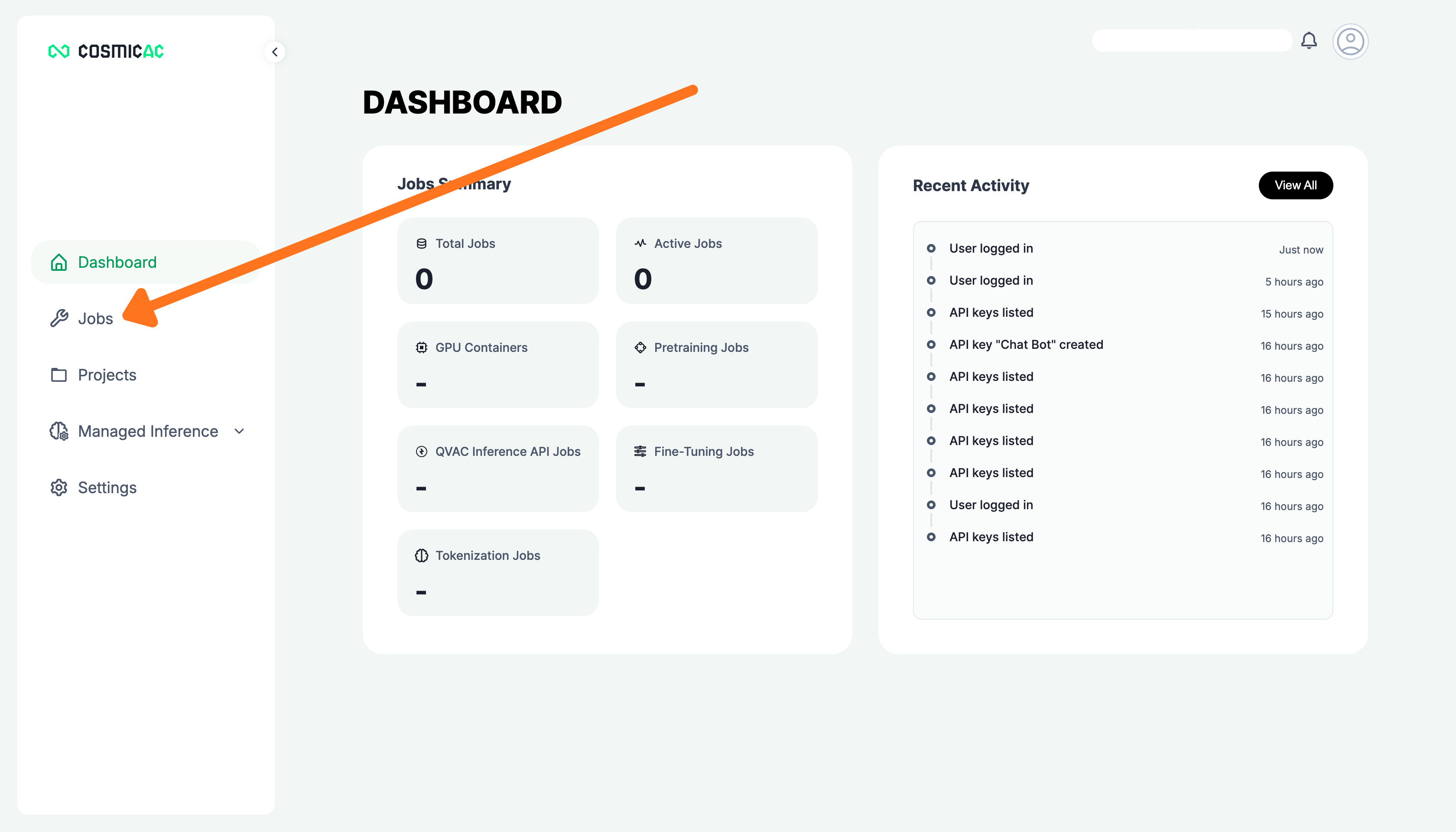
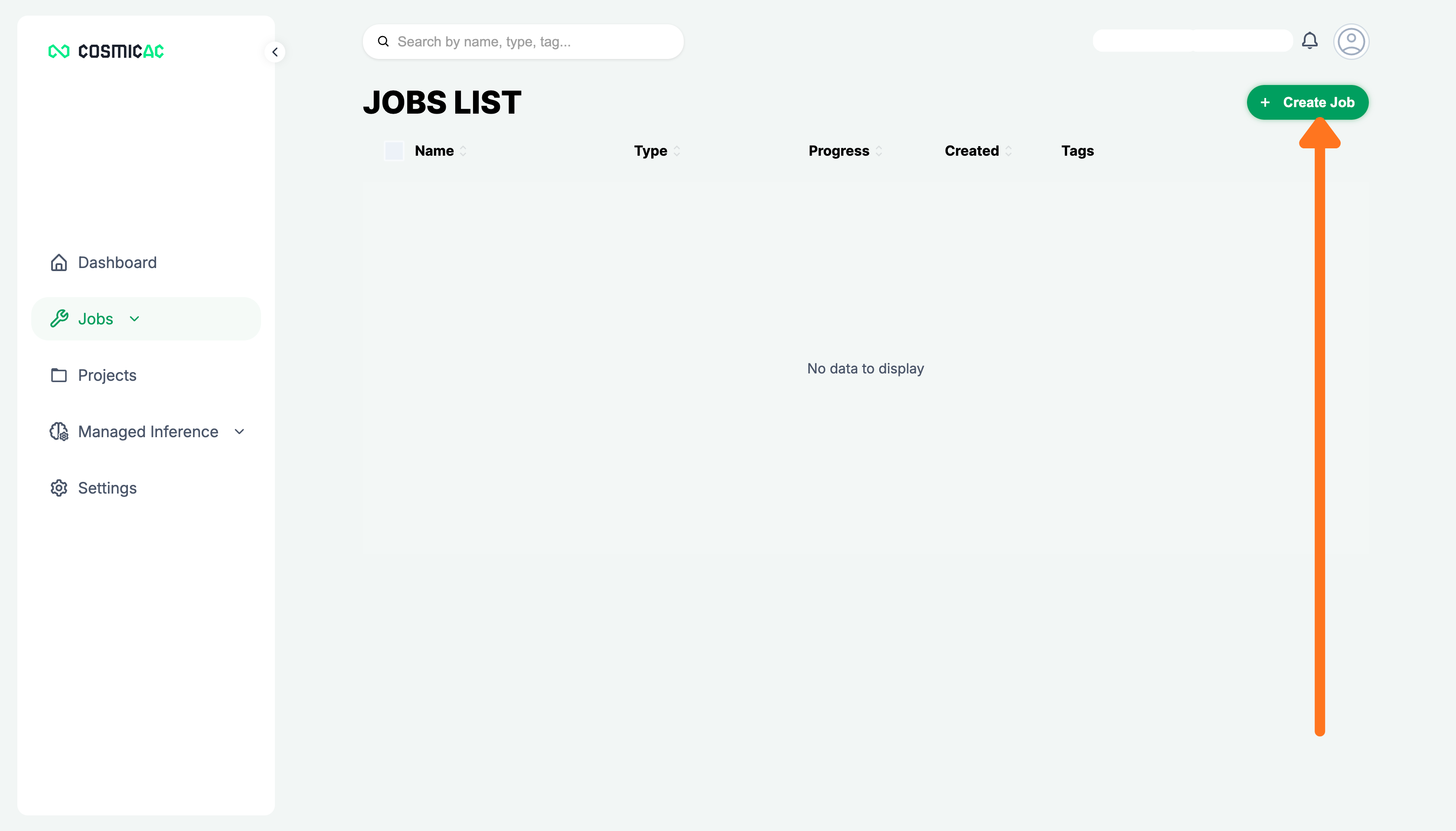
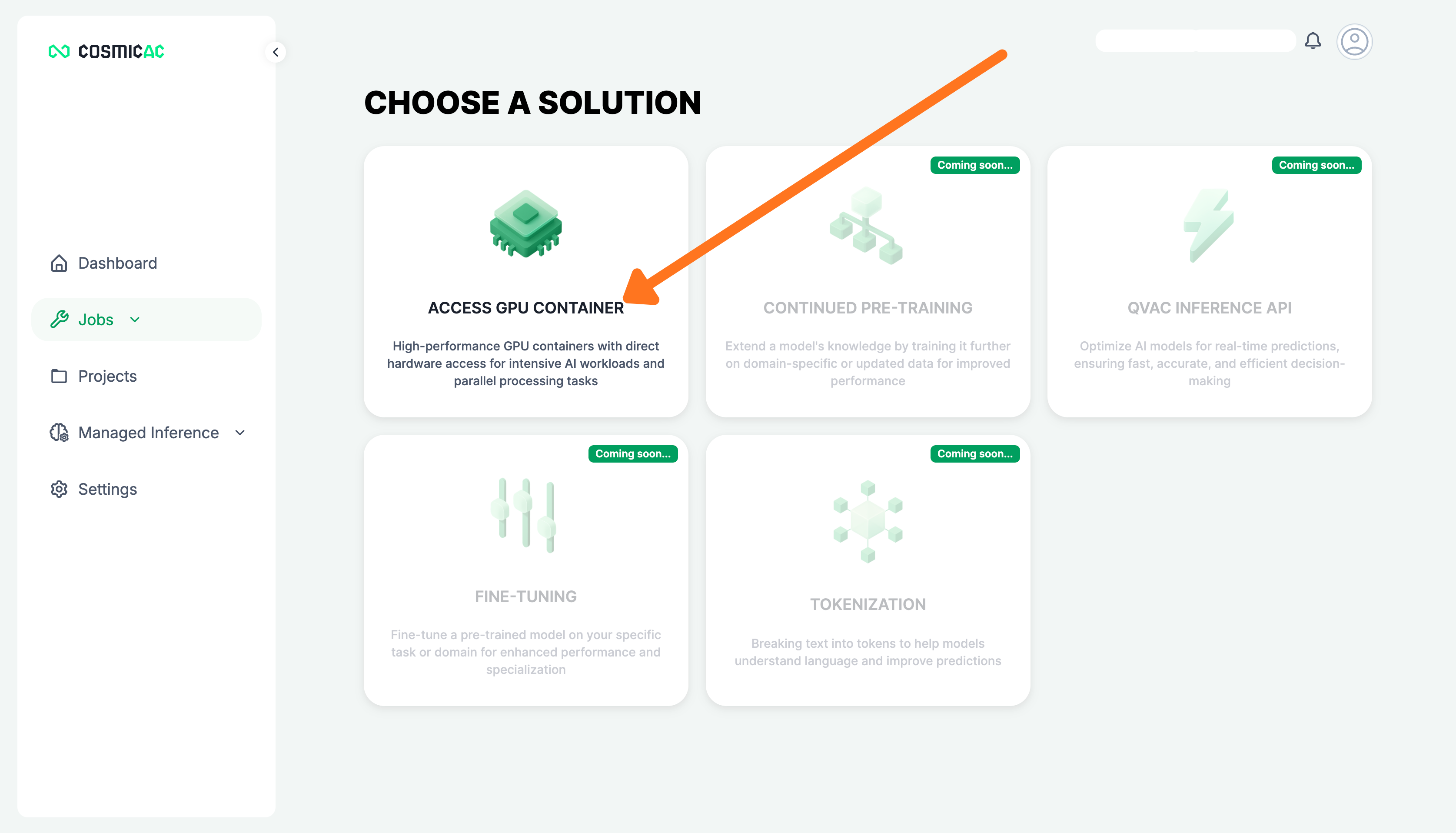
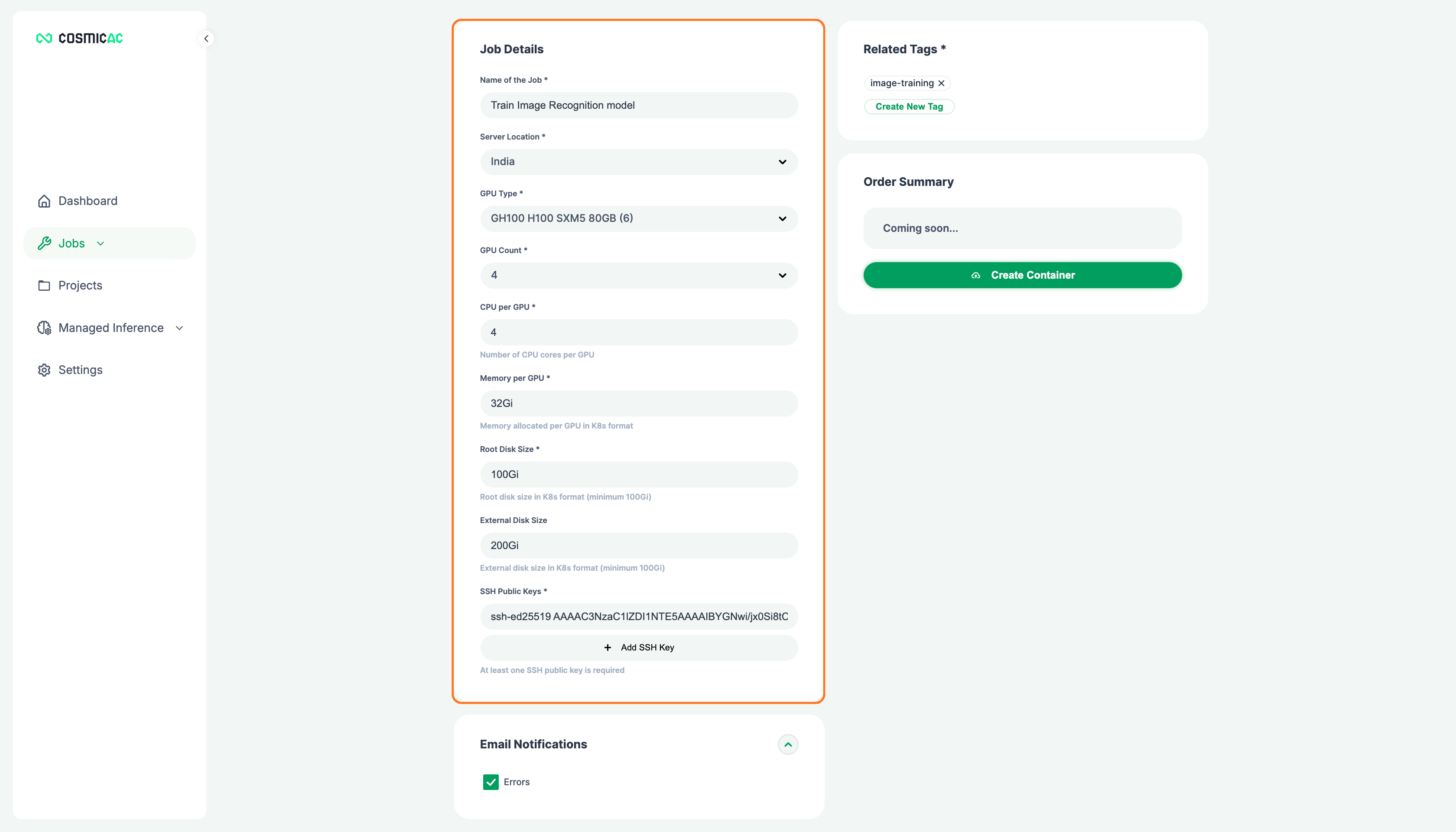
Configure job details
Fill in the required fields:
| Field | Description |
|---|---|
| Name of the Job | A descriptive name for your job |
| Server Location | Region where your container runs |
| GPU Type | Hardware configuration |
| GPU Count | Number of GPUs to allocate |
| CPU per GPU | Number of CPU cores per GPU |
| Memory per GPU | Memory allocated per GPU (KiB format) |
| Root Disk Size | Root disk size (KiB format, minimum 100Gi) |
| External Disk Size | External disk size (KiB format, minimum 100Gi) |
| SSH Public Keys | At least one SSH public key is required |
Add tags
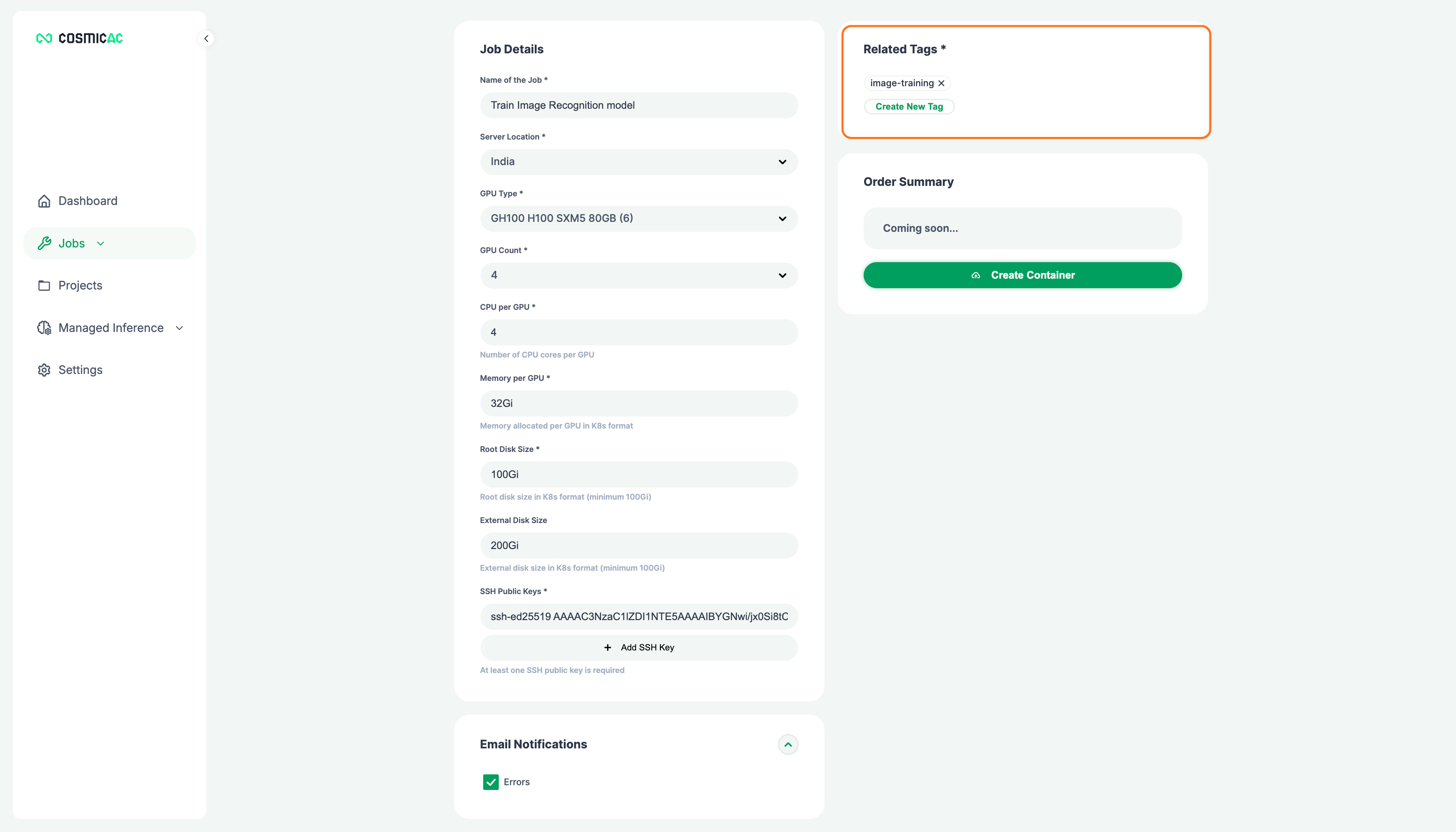
Add at least one tag under Related Tags to organize your job. Click Create New Tag to add a custom tag.
Create the container
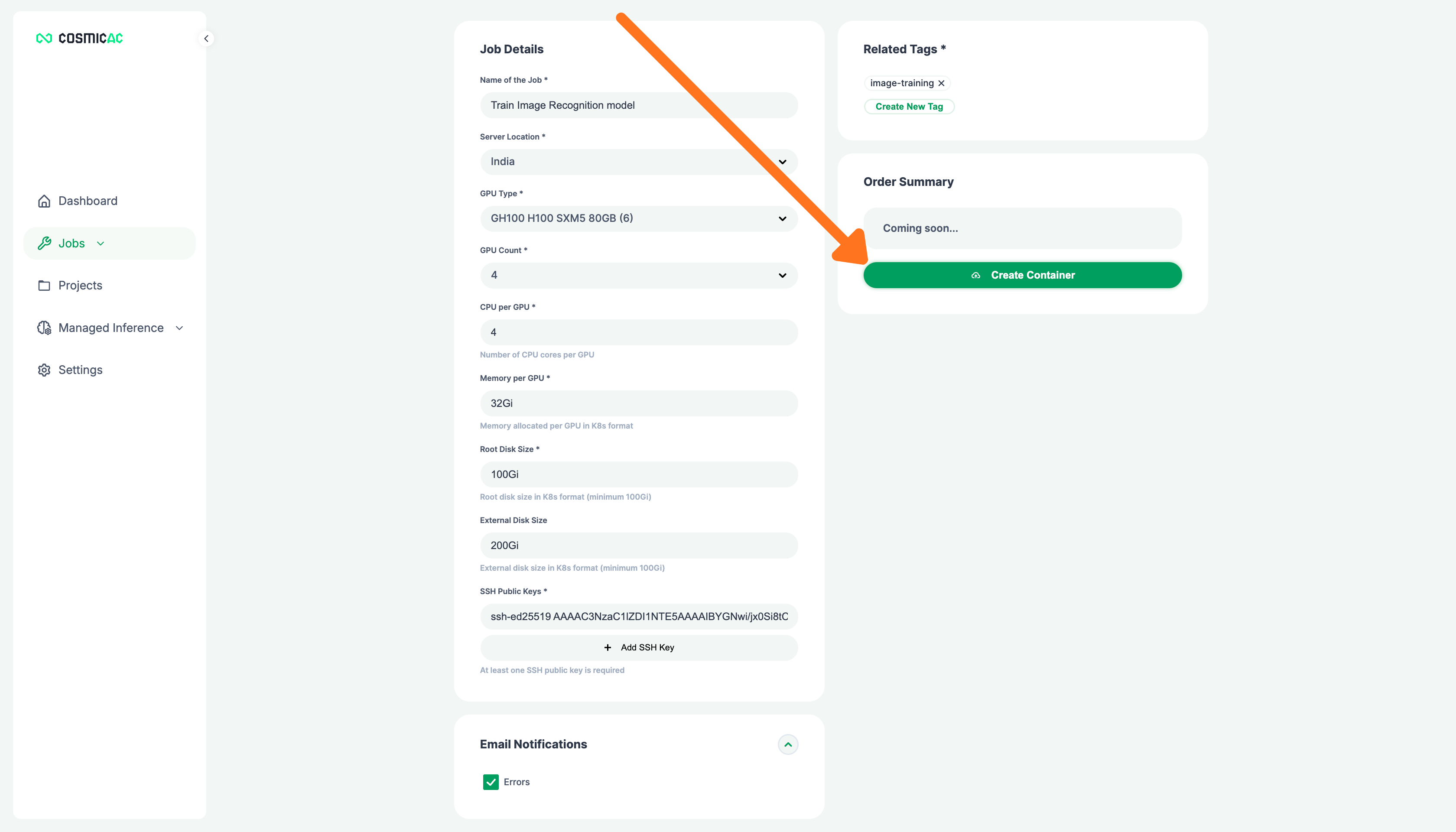
Click Create Container in the Order Summary panel.
CosmicAC provisions the container in a few minutes. Once ready, the status changes to Running.